Docker Lab
Purpose
By the end of this lab, you will have started an Ignition gateway from the project-template, understand what each Docker service does during startup, made changes through the Designer and observed what Git tracks, and practiced the most common day-two operations.
Before Getting Started
Prerequisites:
- Workstation Setup complete (Docker Desktop running, Git installed)
- Traefik Reverse Proxy set up and running
- A GitHub account
This lab is self-contained: you will create a repository from project-template, clone it, and configure .env in Step 0. If you have already done these steps as part of the Version Control Lab, skip ahead to Step 1.
Step 0: Create Your Project
The ia-eknorr/project-template repository
is a pre-configured Ignition 8.3 Docker project. Create your own copy of it.
Create the repository on GitHub
- Go to github.com/ia-eknorr/project-template
- Click the green Use this template button, then select Create a new repository
- Fill in the form:
- Owner: your personal GitHub account
- Repository name: your project name, e.g.
my-ignition-project(lowercase with dashes) - Visibility: Private is a good default for a learning repo
- Click Create repository
Clone the repository to your machine
cd ~/projects
git clone https://github.com/<your-username>/my-ignition-project.git
cd my-ignition-project
Configure the environment
The template uses a .env file for per-machine settings that should not be committed.
# Mac / Linux
cp .env.example .env

# Windows (PowerShell)
copy .env.example .env
Open .env in your editor and set GATEWAY_NAME to match your repository name (for example, my-ignition-project). This becomes the Traefik hostname - your gateway will be available at https://my-ignition-project.localtest.me. The default DB_USER, DB_PASSWORD, and TZ are fine for local development.
The gateway ships open by default: the UI does not require a login. A committed admin user (see the project-template Security section) is available when you need to launch the Designer.
.env is listed in .gitignore by default. Environment-specific values should never be committed. Share configuration through .env.example instead.
Step 1: Start the Stack
From the root of your project-template repository, bring up all three services:
docker compose up -d
$ docker compose up -d
[+] Running 5/5
 ✔ Network my-ignition-project_default          Created
 ✔ Volume "my-ignition-project_ignition-data"  Created
 ✔ Container my-ignition-project-bootstrap-1    Exited
 ✔ Container db-my-ignition-project             Healthy
 ✔ Container my-ignition-project                Started
The startup order is not random - it is enforced by depends_on conditions in the compose file. Here is what happens in sequence:
dbstarts and begins its healthcheck loop (PostgreSQL is initializing)bootstrapstarts, seeds theignition-datavolume with Ignition's base files, writes the.ignition-seed-completesentinel file, and exits with code 0- Once
bootstrapexits successfully anddbpasses its healthcheck,gatewaystarts
Compose surfaces this in the up output: bootstrap is reported as Exited (its successful end state) and db as Healthy before the gateway starts. The gateway container uses your GATEWAY_NAME directly (no -1 suffix) because docker-compose.yml sets container_name.
The sentinel file at .ignition-seed-complete inside the named volume is the key. On every subsequent docker compose up, bootstrap checks for that file, finds it, and exits immediately without re-seeding. The volume is only seeded on the very first start, or after a docker compose down -v wipes the volume.
Step 2: Watch the Gateway Start
Stream the gateway logs:
docker compose logs -f gateway
Scan the output for these milestones:
$ docker compose logs -f gateway
my-ignition-project  | wrapper  | 2026/05/15 21:25:17 | --> Wrapper Started as Console
my-ignition-project  | wrapper  | 2026/05/15 21:25:18 | Launching a JVM...
my-ignition-project  | jvm 1    | 2026/05/15 21:25:19 | I [IgnitionGateway               ] [21:25:19.001]: Starting Ignition 8.3.6 (b2026042713)
my-ignition-project  | jvm 1    | 2026/05/15 21:25:19 | I [g.ModuleManager               ] [21:25:19.304]: Loading modules....
my-ignition-project  | jvm 1    | 2026/05/15 21:25:27 | I [ModuleInstance                ] [21:25:27.282]: Starting up module 'com.inductiveautomation.perspective' v3.3.6 (b2026042713)... module-name=Perspective
my-ignition-project  | jvm 1    | 2026/05/15 21:25:27 | I [IgnitionGateway               ] [21:25:27.450]: Gateway started in 8 seconds.
Press Ctrl+C to stop following the logs once you see Gateway started in N seconds..
This is normal. Ignition loads every module (Vision, Perspective, Reporting, Alarm Notification, and more) during startup, and each module initializes against the database. Do not assume the gateway is broken if it has not appeared after 30 seconds.
Once the logs settle, confirm all three services are accounted for. Pass -a so the exited bootstrap container shows up too:
$ docker compose ps -a
NAME                          IMAGE                                COMMAND                  SERVICE     CREATED          STATUS                      PORTS
db-my-ignition-project        postgres:18.4                        "docker-entrypoint.s…"   db          2 minutes ago    Up 2 minutes (healthy)      5432/tcp
my-ignition-project           inductiveautomation/ignition:8.3.6   "docker-entrypoint.s…"   gateway     2 minutes ago    Up 2 minutes (healthy)      8088/tcp
my-ignition-project-bootstrap-1   inductiveautomation/ignition:8.3.6   "/bin/bash /docker-b…"   bootstrap   2 minutes ago    Exited (0) 2 minutes ago
bootstrap showing Exited (0) is correct and expected. It is a one-shot service that exits after completing its work, so it does not appear in docker compose ps without the -a flag.
Notice that bootstrap uses the same inductiveautomation/ignition:8.3.6 image as the gateway. It is not a separate prebuilt image - it is the standard Ignition image with a different entrypoint (/docker-bootstrap.sh) that runs the seed script and exits.
Step 3: Open the Gateway
Open your browser and navigate to:
https://<GATEWAY_NAME>.localtest.me
Replace <GATEWAY_NAME> with the value you set in your .env file (for example, https://my-ignition-project.localtest.me).
Traefik generates a self-signed certificate for *.localtest.me. Your browser will show a security warning. This is expected for local development - click Advanced and then Proceed (the exact wording varies by browser). You will not see this warning in a production deployment that uses a real certificate.
The gateway auto-commissions during startup and lands directly on the gateway home page - no login is required to browse the UI. Confirm that the gateway name at the top matches GATEWAY_NAME from your .env file.
The project-template ships open: no login is required to browse the Gateway. You only need to authenticate for privileged operations like launching the Designer. Before any non-local deployment, follow the Security section of the project-template README to lock it down.
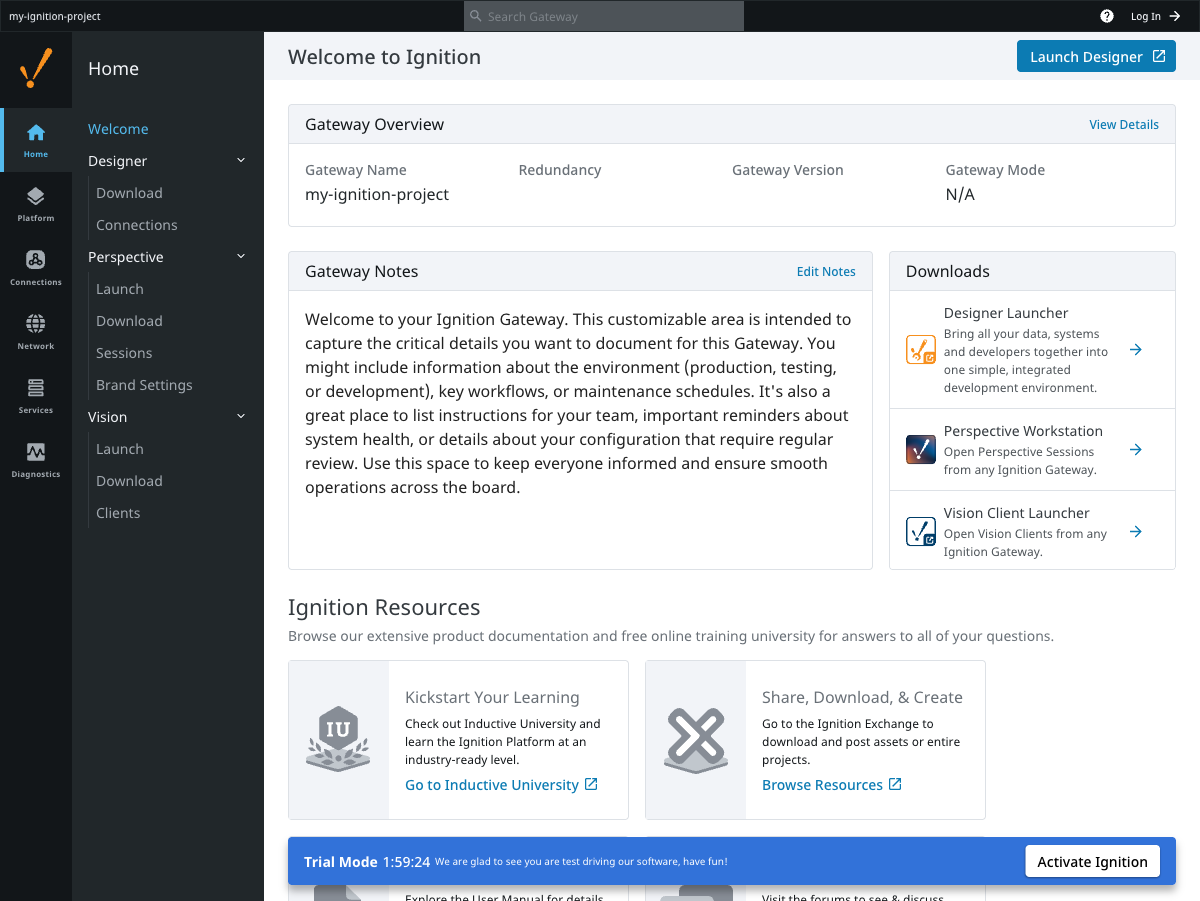
Traefik routes the *.localtest.me domain to the correct container based on the gateway name - no port numbers needed in the URL. Without Traefik, you would need to expose host ports and use http://localhost:8088.
Step 4: Observe the Bootstrap Volume Seeding
Now that the gateway is running, inspect what bootstrap did:
docker compose logs bootstrap
$ docker compose logs bootstrap
bootstrap-1  | Seeding data for gateway...
bootstrap-1  | Generated UUID for gateway: 86373f58-6342-d977-f2eb-fc1fafb95be2
bootstrap-1  | Seeding complete for gateway.
bootstrap-1  | Bootstrap completed successfully.
The bootstrap script copies the base Ignition data tree into the ignition-data volume, derives a UUID from GATEWAY_NAME (so the same name always produces the same UUID), writes the .ignition-seed-complete sentinel, and exits 0. On a second docker compose up you would instead see Gateway already seeded, skipping....
Peek inside the gateway container's data directory:
docker compose exec gateway ls -a /usr/local/bin/ignition/data/
$ docker compose exec gateway ls -a /usr/local/bin/ignition/data/
.  ..  .container-init.conf  .context.tmp  .gateway.xml.bak
.ignition-seed-complete  .redundancy.xml.bak  certificates
commissioning.json  config  db  email-profiles  gateway.xml
gateway.xml_clean  ignition.conf  init.properties.bak  jar-cache
log4j.properties  logback.xml  metricsdb  modules.json  projects
redundancy.xml  request  response  var
The .ignition-seed-complete file is the sentinel that prevents bootstrap from re-seeding. As long as this file exists inside the named volume, bootstrap will exit immediately on every subsequent start without touching anything.
Ignition's license activation is tied to the gateway's UUID. Deriving it from GATEWAY_NAME means a recreated volume gets the same UUID and the license can be restored without reactivation. See The bootstrap Service for full details.
Step 5: Open the Designer and Make a Change
Launch the Designer from the gateway homepage:
-
Click Launch Designer on the gateway homepage
-
Log in with the committed admin credentials (see the project-template Security section)
-
Click New Project, name it
docker_lab(or similar), and open it -
In the Project Browser, right-click Views and add a new view named
hello -
Drag a Label component onto the view and change its text to something recognizable
-
Save: File - Save and Publish (or
Ctrl+S)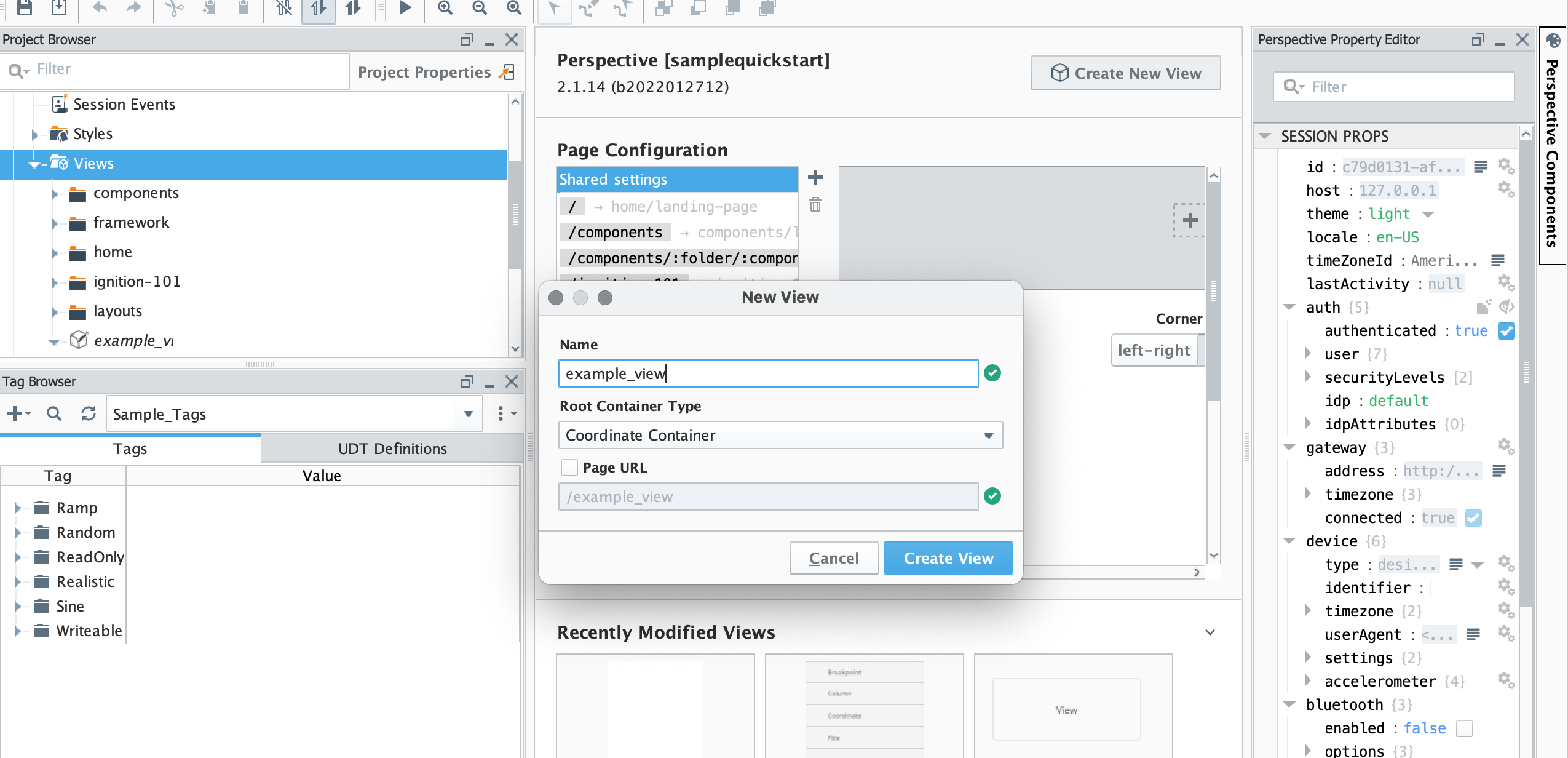
Back in your terminal, run:
git status
$ git status
On branch main
Untracked files:
  (use "git add <file>..." to include in what will be committed)
        services/ignition/projects/docker_lab/

nothing added to commit but untracked files present (use "git add" to track)
The view files appeared in services/ignition/projects/ the moment you saved in the Designer - no export step, no manual copy. The bind mount means the Designer writes directly to the files Git tracks.
Ignition stores each Perspective view as a pair: resource.json (metadata) and view.json (the view itself). Both are human-readable JSON, which is what makes them useful to track in Git.
Step 6: Commit Your View
Stage only the projects directory:
git add services/ignition/projects/
Confirm what is staged, then commit:
git commit -m "add docker_lab project with hello view"
This is the intended workflow: changes inside projects/ represent intentional work that should be committed.
Step 7: Restart and Verify Persistence
Restart the gateway to confirm the view survives a restart:
docker compose restart gateway
$ docker compose restart gateway
[+] Restarting 1/1
 ✔ Container my-ignition-project  Started
Follow the logs until the gateway is back up:
docker compose logs -f gateway
Wait for Gateway started in N seconds., then open the Designer again and check the Project Browser. The docker_lab project and its hello view are still there.
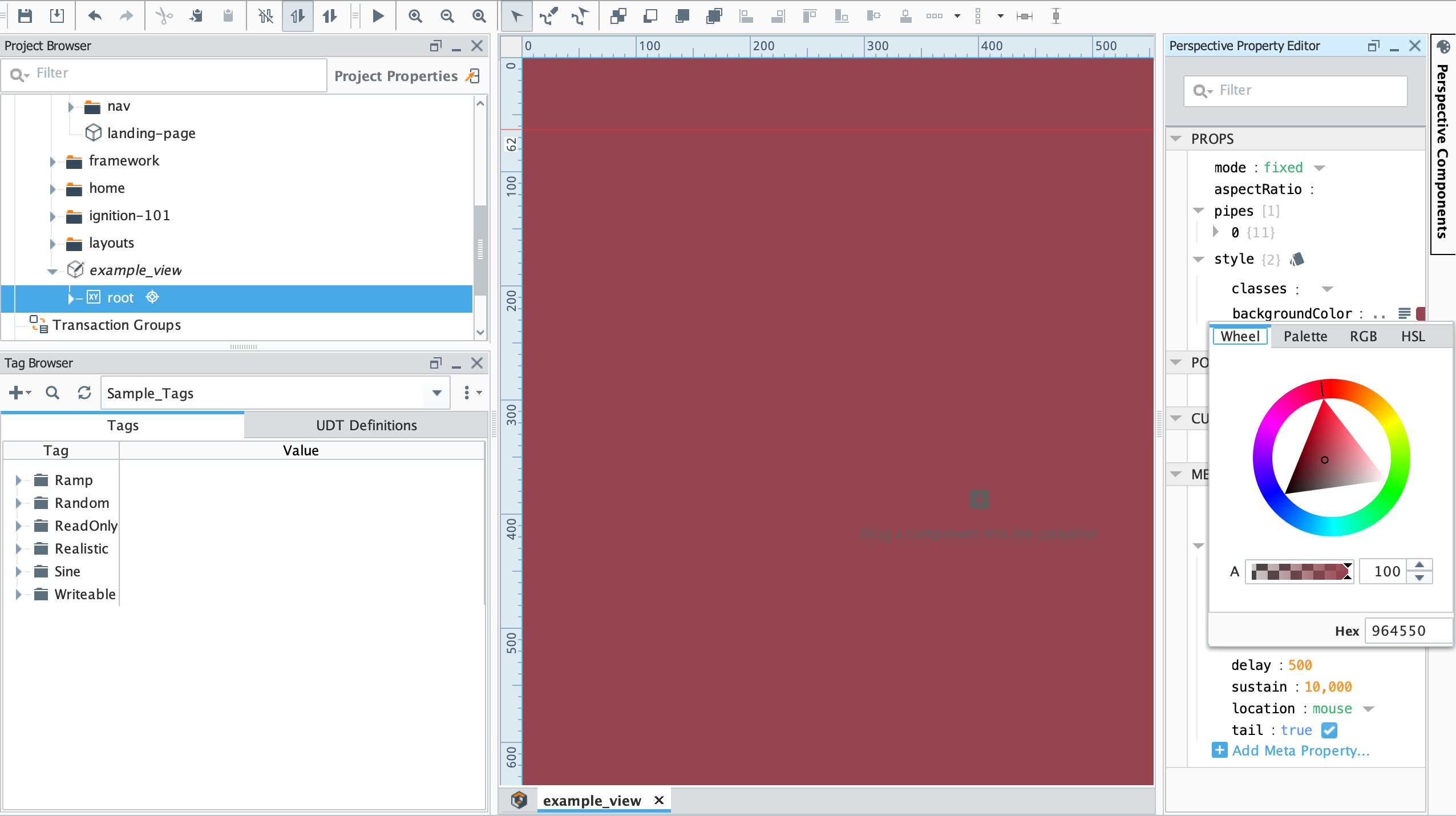
The view persists because it lives in services/ignition/projects/ on your machine's filesystem - not inside the Docker volume. Restarting the container does not touch bind-mounted files. The named volume holds runtime state (module caches, the internal database); your project files live in git.
docker compose restart gateway stops and restarts only the gateway container. The ignition-data volume and the database are untouched. Use this for day-to-day operations when you need the gateway to reload a changed module or pick up a gateway script change.
Step 8: Full Reset
Run a full teardown with volume removal:
docker compose down -v
$ docker compose down -v
[+] Running 6/6
 ✔ Container my-ignition-project              Removed
 ✔ Container my-ignition-project-bootstrap-1  Removed
 ✔ Container db-my-ignition-project           Removed
 ✔ Volume my-ignition-project_ignition-data   Removed
 ✔ Network my-ignition-project_default        Removed
The -v flag removes named volumes. The ignition-data volume (which held the seeded Ignition installation, module cache, license activation, and the internal config database) is gone. The template's PostgreSQL service is not configured with a named volume, so its data is wiped along with the container itself.
Start the stack again:
docker compose up -d
Wait for startup. The gateway runs commissioning again because the named volume is brand new, then you can open the Designer. The docker_lab project and its hello view are still there.
down -v deletes volumes but does not touch git-tracked files. The bind-mounted services/ignition/projects/ directory is on your machine's disk - Docker never owns it. When the gateway starts fresh, the bind mount re-applies your committed project files and the view is back.
down -v does deleteThe named volume holds things that cannot be recovered from git: module license activations, alarm journal history stored in the volume, and any runtime data not bound to a git-tracked directory. After a down -v, the gateway starts as if it were a brand-new installation - you may need to re-activate your license. Use down -v only when you intentionally want a clean slate.
down -v on a production gatewayOn a production system, the named volume holds your alarm journal, transaction group data, and other runtime state that is not tracked in git. A docker compose down -v on production is a destructive operation with no undo.
What You Built
You started a three-service Ignition stack from scratch, watched each service fulfill its role in the startup sequence, made a change through the Designer, and saw it appear immediately in git.
You also verified the core architectural guarantee: git-tracked files survive a full volume reset. The bind-mounted projects/ directory is not inside Docker's storage - it is on your filesystem, in your repository. Docker volumes hold runtime state; git holds configuration.
The workflow you practiced
| Action | Command |
|---|---|
| Start the stack | docker compose up -d |
| Stream gateway logs | docker compose logs -f gateway |
| Check all service states (including exited bootstrap) | docker compose ps -a |
| Restart the gateway | docker compose restart gateway |
| Full reset (delete volumes) | docker compose down -v |
| Stage only project changes | git add services/ignition/projects/ |
Next steps
- Continue to the Version Control Lab to build the full Git, branching, and pull request workflow on top of the gateway you just stood up
- Read The Compose Architecture for a detailed walkthrough of every service, every flag, and why they are configured the way they are
- Read Volume Strategy to understand the full picture of what lives in named volumes versus bind mounts